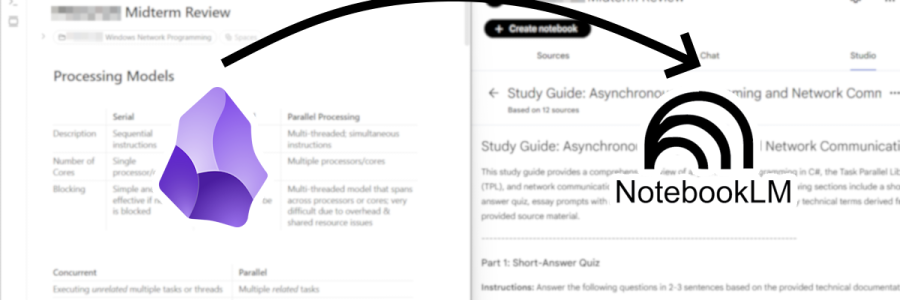
I primarily use Obsidian for my note-taking for my classes. Historically, I have used Microsoft OneNote, which made more sense when I studied science and had a lot of images, diagrams, and concepts, but I have since switched to Obsidian to study software engineering.
The main reasons I switched to Obsidian are the ease of using Markdown formatting and linking notes. All of my notes are organized in .md files on my computer, and the numerous plugins makes Obsidian incredibly flexible. It can be as simple or as complicated as you want. Markdown is simple and intuitive to use, and can offer code highlighting for inline blocks of code, which is essential when studying programming. Obsidian also supports HTML, which is helpful for other miscellaneous formatting.
Furthermore, I can treat Obsidian as my own personal “wiki”, linking related notes and topics, which is essential for remembering information better. I can also search my entire vault to retrieve information quickly, which is helpful to add more connections between topics.

After perfecting my own Obsidian setup, I discovered Google NotebookLM, an AI-powered research tool that focuses on a curated list of sources you give it or add to it from the web. You can ask questions based on the source material, generate reports, videos, audio, and quizzes based on the material, among other useful features. This helps avoid common problems with LLMs such as hallucination, where they confidently states falsehoods as fact, as it’s restricted to the sources you give it.

By combining my notes with NotebookLM, I can more efficiently study. I can create quizzes and guides to shift from passively reading my notes to actively testing myself on the information, further preparing me for tests.
Step 1: Setting up my Obsidian vault
I created a separate vault for all of my school notes, which also includes things school policies and coding standards. I have a folder called “Reference” for non-course related information, and then I have a folder separated by each semester or term. Each course gets its own folder. Each course folder also has an img folder, where I can store any image files related to the notes in that folder.

Something to consider if you are studying programming is having a dedicated “Code Library” folder. Mine contains snippets of code, Regular expressions, and other useful scripts that I have gathered over my studies, along with any applicable references, so that I can quickly look up and copy over code that I find myself having to reference over and over without opening previous projects.

Although I recommend against installing a lot of plugins at once and to instead focus on the original Obsidian experience, adding each plugin as you see fit, I will share the community plugins I use below:
- Advanced Tables: This plugin is essential for formatting tables in Obsidian, particularly because the Markdown syntax is a bit cumbersome. It also adds more advanced spreadsheet-like features.
- Callout Manager: Useful to create custom callouts, or boxes in notes. I make custom ones as I see fit.
- Commander: Adds custom commands and keyboard shortcuts for my common shortcuts. I mainly use this to quickly create tables or callouts.
- Iconize: Adds custom icons to files, folders, and text. Admittedly, I don’t use many icons, but I like having access to icon libraries so I can add icons to my notes. Plus, I have more at my disposal than just emoji.
- Linter: This is a more advanced plugin that allows you to quickly style your notes. I use this to automatically format anything I copy and paste to remove extra whitespace, style bullets, and fix other formatting issues. I really recommend you don’t use this one until you know what you’re doing, because it’s pretty powerful.
- make.md: This is a really powerful plugin that more or less allows Obsidian to feel more like Notion. I use Notion purely for planning purposes and Obsidian for note-taking purposes, so I haven’t used this plugin to its fullest extent. The main features I use are “Spaces”, so I can have a dedicated space for each course without seeing the folders of my other notes, and the custom note ordering.
- Remember cursor position: I often scroll through my notes, and it really helps to open a note back to where I had originally been positioned.
- Shiki Highlighter: Obsidian has a native code highlighting, but I like this plugin for custom themes and features like naming each code block and highlighting particular lines.
- Smart Typography: I use this to automatically convert dashes to em dashes, periods to ellipses, and arrows. I don’t have it convert quotes to curly quotes, especially since it can mess with syntax.
Crucially, the names of my notes are very general, and I separate by topic moreso than by weekly lecture content. One lecture can be a singular note, but often it’s anywhere between 2-5 individual notes. Sometimes I will group those notes into more related folders.
For example, for my Advanced SQL course, I have the following folder structure in its own make.md space:

I have a separate folder called “SQL” in my Reference folder, which contains a page for each SQL command. In the class folder itself, I have “img”, “In-Class Exercise”, and each topic gets its own page. There are also the “SQL” and “Indexes” folders to help consolidate topics.
This setup was developed and refined after years of experience in school. I think the biggest game changer was allowing linking related topics à la Obsidian. Information I gather doesn’t feel scattered or disconnected because I am always trying to link topics together. This is key to consolidating information in your mind to go from rote memorization to true understanding and learning.
Step 2: Writing notes
Okay, after all that setup, the important part is actually writing the notes!
The primary source of information for my note-taking is provided lecture material. Before class, if the slides are posted ahead of time, I take notes from reading the slides. I always do this preparation before a lecture because it primes me before class to be prepared for the topic, and I can focus on concepts I found confusing on my own. Most courses provide comprehensive lectures that many students use, but I take it a step further with my own notes. If it relates to previous topics I have taken notes on, as it often does, I add internal links for quick reference.
During lecture, I add onto these notes, emphasizing and highlighting whatever the teacher may stresses in class. I retain information best when I am taking notes while listening.
Then I add extra notes. The amount of notes to add varies by class, topic, and my personal understanding. Usually, the lecture slides offer readings and/or reference links, so I add a few more bullet points from those to enhance my understanding. This is particularly useful if lecture notes are more sparse. If there are code examples demos and examples outside of lecture content, I also move them in there.
For example, for my courses teaching development in the .NET environment, I often add extra notes from Microsoft documentation, as I know they are incredibly helpful and comprehensive. There are also numerous tutorials online, so I usually search on topics I don’t feel like I have a strong grasp on and add any information that I find useful.
Although it’s less important, I also focus on formatting my notes well. I add headings and subheadings, use callouts to my full advantage, and otherwise try to make my notes look more visually appealing than a block of text.

How do I take good notes?
In my experience, it takes a lot of time and practice to take good notes. Sometimes, you will take too many notes. Other times, you haven’t taken enough. The amount and style of note-taking can vary wildly between classes, so it can get even more difficult to determine what notes to take.
I know I benefit from note-taking as I know my learning style very well. However, you may benefit from minimal notes and learning concepts by other means. It’s important that learning takes on many forms, and my (somewhat) obsessive note-taking setup may not translate well from person-to-person.
That said, I think everyone can benefit from taking good notes to some degree. My general pointers are:
- Don’t take notes on what you can access from slide content – unless the teacher emphasizes the concept. Then the repetition may help.
- If it intuitively sounds important to you, if it strikes a chord with you, or sounds interesting, regardless of what it is, write it down.
- Use bullet points and short form rather than full, coherent sentences. You can always write out full sentences later.
- If you’re studying coding: comment code segments. Explain how the code works, step-by-step, in layman’s terms if possible.
- Search up topics you’re unclear about and add extra notes to clarify your understanding.
- Writing notes by hand is more effective than typing notes. I type my notes out of my personal choice, but consider handwriting them.
- What “good” notes are is up to you. If writing down a song lyric means you will quickly remember a concept that the lyric reminds you of, by all means, include it. The important part is these notes are yours.
Step 3: Creating reviews for tests
Before I even open NotebookLM, I write out my own summary of content for tests and large culminative exams like midterms. I can reference the notes as much as I need to. I like creating visuals and tables. I switch between sketchnoting my summary or typing it out, depending on how visual I can make the information.

Reviewing information, especially by hand and not just asking an LLM to make a summary for you, exposes you more to the topic. Look for gaps in your understanding, especially if you don’t understand how the topics link together. Try to have a higher view look at your notes and understand why it’s important. This is something I still swear by doing manually, even in the age of AI.
If you’re unsure of where to start, pretend you’re explaining the topic to a child. Use the Feynman Technique (YouTube link) to try to explain a topic, and then later go back to parts you missed or had trouble with for review, and then try it again.
Step 4: Using NotebookLM to generate quizzes and study guides
The best way to find gaps in your understanding and determine how well you know the material is to test yourself. Before NotebookLM, I would have created my own study questions, if professors did not offer any practice questions, and try to research practice questions online to test my understanding. I would then grade myself, and emphasize my studying on parts that I have missed.
Now I don’t have to. The beauty of NotebookLM is that it only pulls from your sources. I simply drop my notes into NotebookLM and click on “Quiz” to generate a quiz. I can choose the difficulty of questions and the number of questions. From the quiz, I can see what I got wrong, and then go back to review that topic and then try again.
You can also generate study guides. Under “Reports”, there is a “Study Guide” template. It creates ten short answer questions with an answer key, five essay format questions, and a comprehensive glossary. I stick with the default prompt most of the time because I like it, but you can really tweak it to create your own study guide. Sometimes I tweak the prompt to add an answer key to the essay format questions that lists key points that essay answers should include.

Using NotebookLM has been incredibly efficient for me, especially when the topic is specific enough. You can generate quizzes using every source, or only particular sources. I find that more specialized topics produce better results, and five quizzes each covering one topic is usually better than one quiz covering five topics.
Although I hardly use them, you can also generate audio podcasts and videos from your notes. It may be a more useful format for you to understand material better. I think a diverse range of receiving information helps with understanding. If you’re the type who listens to podcasts, an AI podcast of just your notes can be very useful.
Personally, I’m no prompt engineer, so sometimes I will just search for good NotebookLM prompts online to use or refine my own. This is just skimming the surface of how much of a personalized learning tool NotebookLM can be.
Considerations (AKA the Critical Thinking Section)
There is something to be said about overworking and refining a system versus actually doing the work the system is meant to help you with, and I toe the line a lot. I love organization systems, but someone who is endlessly tweaking their system is less productive than the person who is actually studying. Instead of jumping and copying a system, look for ways to adapt your current system with tips you find from productivity gurus online.
The main reason I suggest starting slow is that systems are personal and require maintenance. It’s easy to feel motivated and set up any organization system, but someone else may have different energy levels, preferences, environments, and idiosyncrasies that makes it work for them but won’t work for you. Pace yourself and adapt one part at a time. Once you’re in the habit of it, then you can add the next part.
As with all LLMs, NotebookLM can be finicky – remember to double-check that it’s accurate. Check where it’s pulling information, because there is the once-in-a-blue-moon occasion it says something wrong or misinterprets the source. I’m a big fan of using technology critically, and this is no exception. As you would question the validity of a source online, make sure you understand NotebookLM is as good as the information you give it. Ensure your notes are accurate. If necessary, you may want to add extra trusted sources aside from your notes. Regardless of whether it’s powered by AI or through manual research, vetting sources and thinking critically will always be important.
NotebookLM is one tool of many in a students’ toolkit to succeed. I think there is a real danger of relying on AI to outsource our thinking, especially since research suggests students are more prone to using AI for quick answers rather than learning concepts. Today, teachers are still trying to adapt to widespread generative AI use and determining how much it can help or hinder students’ learning. Use NotebookLM to focus on refining your understanding, rather than just telling you answers.
Disclaimer: This post contains no affiliate links and I am not sponsored by anything I recommend here. Download anything I mention at your own risk. I’m simply a nerd about note-taking, studying, and technology.
Related: Study Tips for University